
Qwick Business App: FAQ
Need help fast? Contact Qwick Support by texting 79425.
Getting Started
What is the Qwick Business app?
It's the mobile companion to your Qwick web dashboard, built for managing shifts from the floor instead of a back office. You can post shifts, watch your live roster, verify hours, and pay your pros, all from your phone.
Do I need a new login to use the app?
No. Use the same Qwick account you already use on the web dashboard.
Which devices does the app work on?
The app is available on both iOS and Android.
Can more than one manager access the same location's account?
Yes. Individual managers can access the same location's account.
Should I use the app or the web dashboard?
Both work together. The app is built for same-day, in-the-moment tasks like posting, checking your roster, verifying hours, and paying pros. The web dashboard is still the place for deeper reporting and account administration.
Posting Shifts
How do I post a shift from the app?
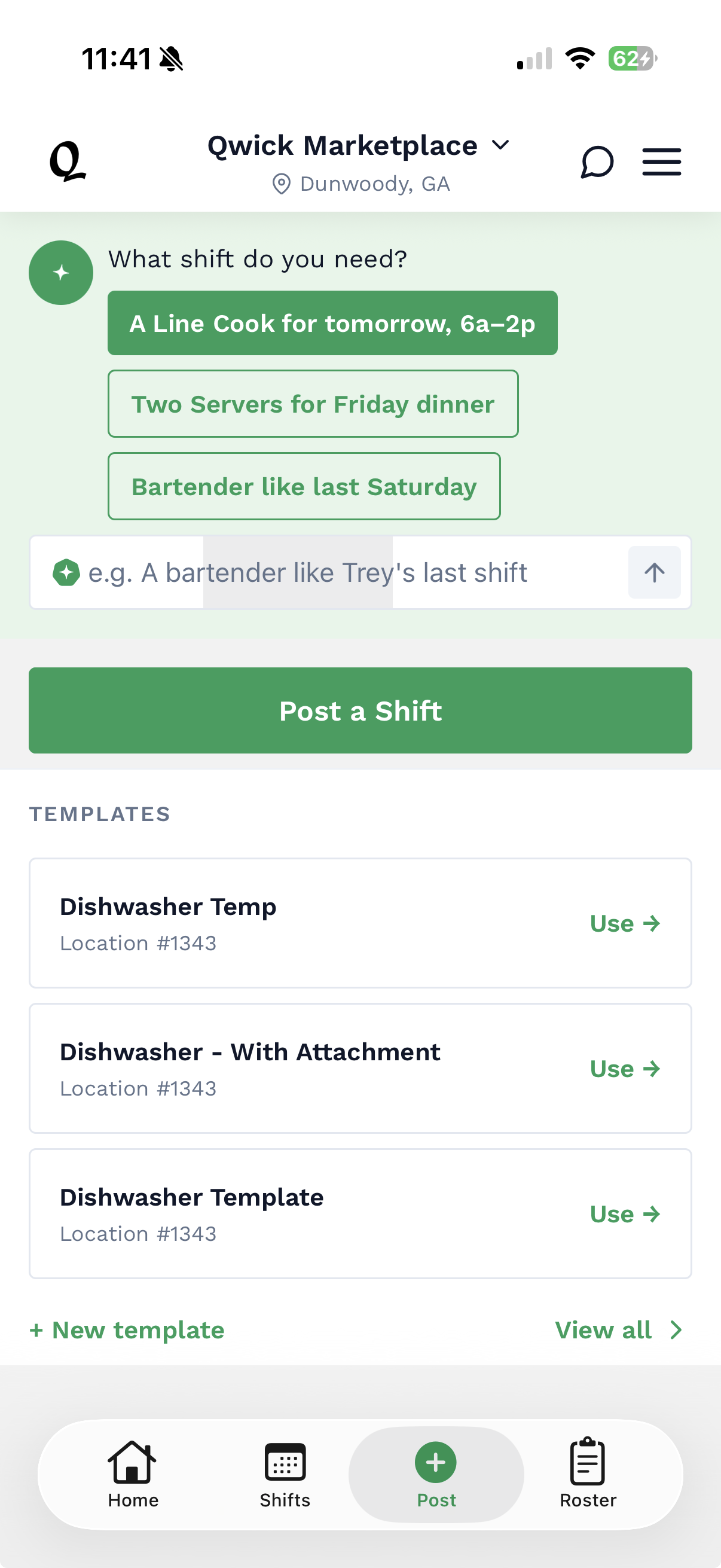
Tap Post, then either type what you need in plain language (for example, "A Line Cook for tomorrow, 6a to 2p") or tap Post a Shift for the guided flow. You can also reuse a saved template with one tap.
Can I repeat a shift I've posted before?
Yes. The AI suggests shifts based on your posting history (for example, "Bartender like last Saturday"), and templates let you save any recurring role, rate, and schedule.
Can I request a specific pro?
Yes. Templates can be tied to a specific pro, and adding a pro to your favorites means they see your shifts first. Learn more about Favoriting pros here.
Can I edit or cancel a shift after I post it?
Yes. Open the shift from the Shifts tab to edit or cancel it. This is also how you'd fix a shift if the AI misread what you typed.
How will I know when a shift is filled?
The Shifts tab shows live fill status (for example, 1 of 1) and a countdown to shift start, so you can see what's covered and what still needs attention at a glance.
Managing Today's Shifts (Roster)
How do I know if my pros have arrived?
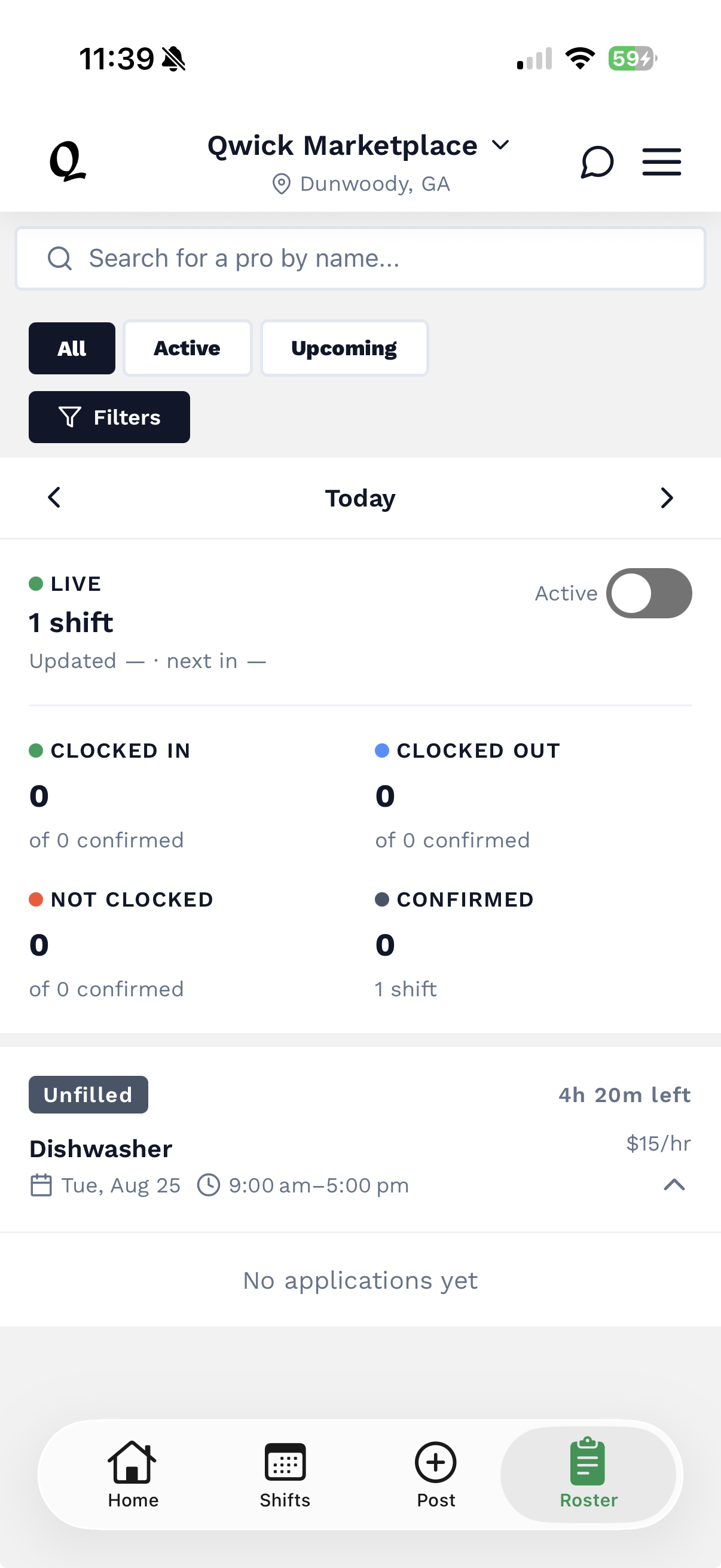
The Roster tab shows a live count of who's clocked in, clocked out, and not yet clocked in, and it updates automatically. Tap any shift to see a pro's status and clock-in time.
A pro clocked in late or forgot to clock out. Can I fix it?
Yes. Open the pro's card from the Roster, tap the edit icon next to the clock-in time, or use + Add to enter a clock-out. Then tap Verify to confirm the hours.
How do I contact a pro on shift?
Open their card and tap Message. If you can't find them on site, tap Request location.
What if a pro doesn't show up?
Message them and try Request location first. If they're unresponsive, standard no-show handling applies. If you need help, Support can walk you through next steps.
Why do the roster numbers look off?
Check the "Updated Xh ago" stamp and pull to refresh, and confirm you have the right location selected in the switcher at the top of the screen. If it still looks wrong after refreshing, contact Support.
Timesheets and Verifying Hours
How do I verify a pro's hours?
From the Roster tab, open the pro's card, confirm or edit their clock-in and clock-out times, then tap Verify.
What happens if I don't verify hours?
The auto-approval window and policy language still need to be confirmed by Ops before this can be published.
Payments
How do payments work?
After a shift ends, pending payments show up on your Home screen. Tap Pay all to settle everything at once, or Show me to review each shift individually first.
What does Pay all actually do?
It batch-approves all pending shift payments for your active location, once hours are verified.
Multiple Locations
Can I manage more than one location from the app?
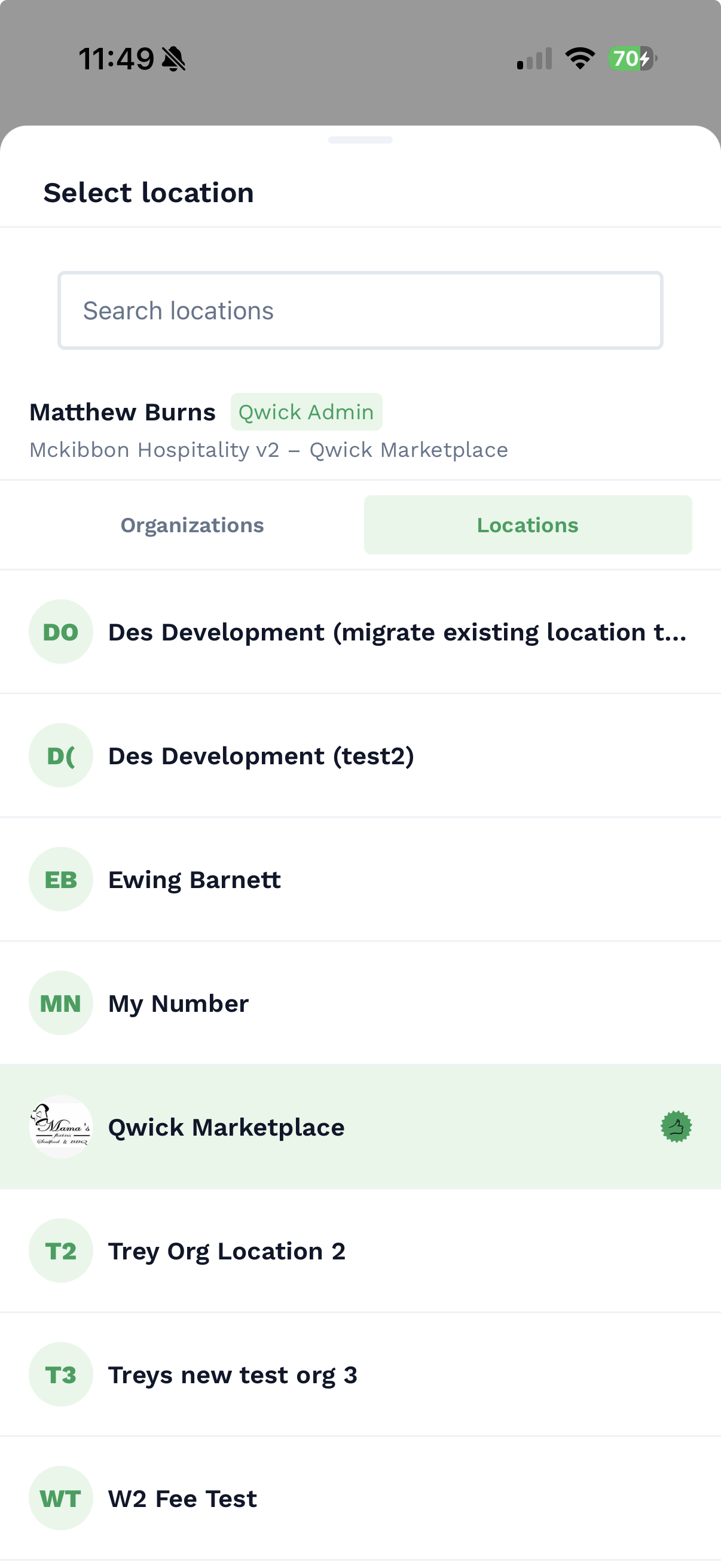
Yes. Use the location switcher at the top of any screen to move between locations on one account.
Notifications and Communication
Will I get notified when something needs my attention, like a pending payment or an open shift?
The Home screen surfaces an AI-driven summary of pending actions, like unpaid shifts.
How do I message a pro directly?
Open their card from the Roster and tap Message.
Troubleshooting and Support
The app isn't showing what I expect. What should I do?
Try refreshing and confirming you're on the right location first. If it's still off, reach out to Support with details of what you're seeing.
Who do I contact if something goes wrong, like a payment issue or a dispute over hours?
Contact Qwick Support by texting 79425. For payment problems in particular, flag it right away so it can be routed to the right team.
What information should I have ready when I contact Support? Your app version, device type, the location involved, and (if relevant) the shift ID, which you can find on the shift detail screen.
Platform and Availability
Are there features only available on the web dashboard, not the app?
You can post shifts and manage your roster and schedule just as
Does the app work if I lose internet connection on the floor?
The Qwick Business App works on cellular networks. Note that if you lose cell service the app will not be able to refresh with any updates.