
How to create and use venue templates
Venue templates let you save frequently used shift locations so you don't have to enter the same address and arrival information every time you post a shift.
Each template can include:
A venue nickname
The shift address
Parking information
Arrival instructions
A map or photo to help professionals find the correct entrance
Create a venue template
You can create a venue template while posting a shift.
In the Where should pros show up? section, click the location field to open the Venue window.
Click + Add New in the upper-right corner.
Open the Venue window to create, select, edit, or delete venue templates.
Enter a venue nickname (for example, Main Kitchen, Loading Dock, or West Ballroom).
Enter the complete address.
Select the parking option:
Free
Paid and Reimbursed
Paid and Not Reimbursed
(Optional) Add arrival instructions, such as:
"Enter through the employee entrance."
"Check in with security."
(Optional) Upload a map or entrance photo (up to 40 MB).
Click Create venue.
Your venue template is now saved and can be used for future shifts.
Use a saved venue template
When posting a new shift:
Click the Where should pros show up? field.
Select a saved venue template from the list.
Click Apply.
The template will automatically fill in:
Address
Parking information
Arrival instructions
This helps ensure professionals receive consistent location details across every shift.
Edit or delete a venue template
To manage saved venue templates:
Open the Venue window from the Where should pros show up? field.
Find the template you'd like to update.
Click the ✏️ pencil icon to edit the template.
Click the 🗑️ trash can icon to permanently delete the template.
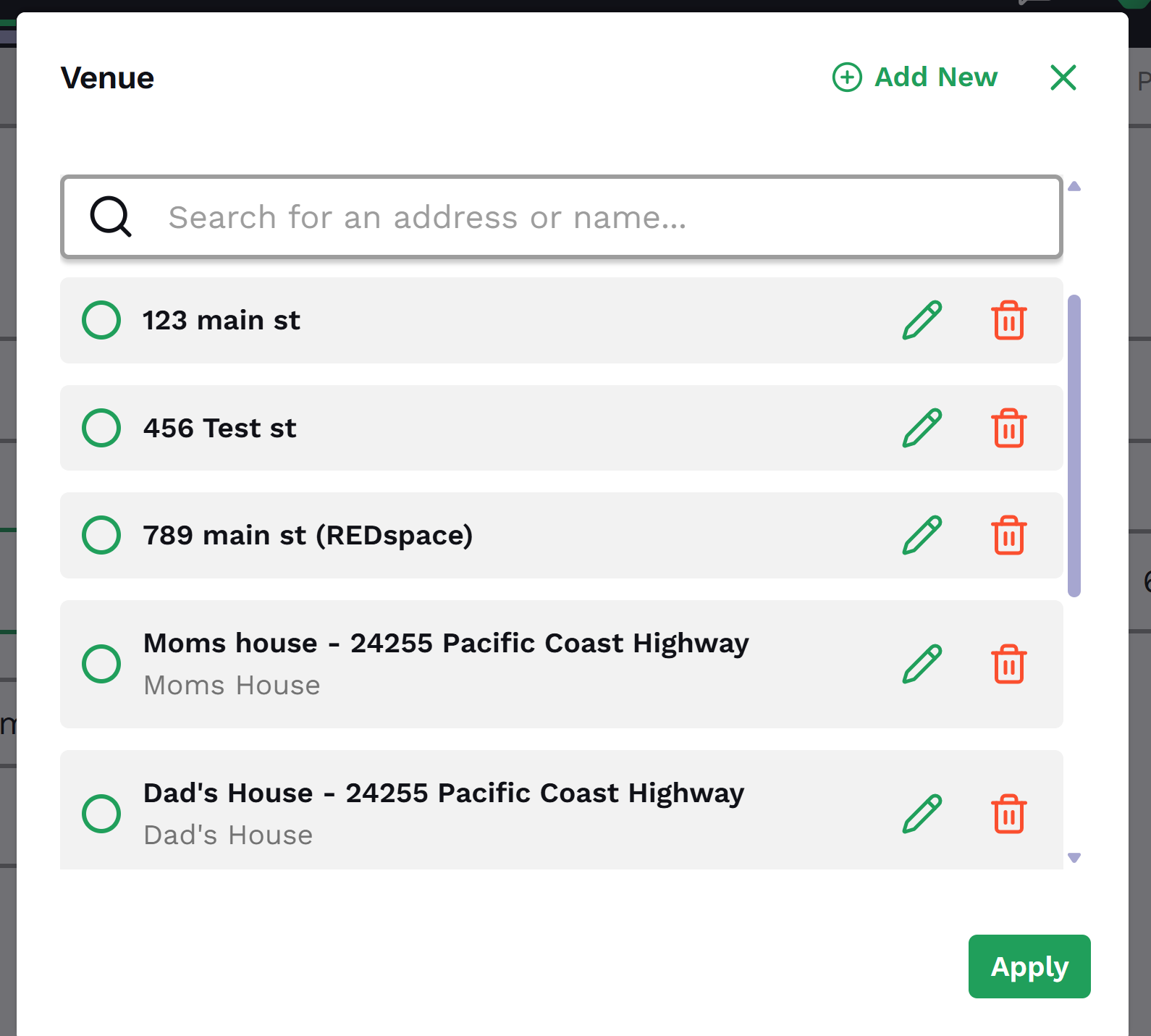
Changes you make will be available the next time the template is used.
Note: Template management works the same way throughout Qwick. Position Templates, Venue Templates, and Managers on Duty can all be created, edited, and deleted using the same controls. Changes only apply to future postings—any shifts that have already been posted will continue using the information that was saved when they were created.
How venue templates work
Templates are shared across your location
Venue templates are shared with other managers at your location. Anyone with access to your business profile can create, edit, use, or delete templates.
Posted shifts keep their original information
When you post a shift, Qwick saves a snapshot of the venue information used at that time.
If you later edit or delete the saved venue template:
Previously posted shifts will not change.
Only future shifts that use the updated template will reflect the changes.
This ensures professionals always receive the location information that was included when the shift was originally posted.
Using venue templates when posting schedules or events
Venue templates are also available when posting schedules or events.
Instead of the Where should pros show up? field, click the ✏️ pencil icon next to the location on the Select an address for each shift page to open the Venue window.
You can create, edit, and select venue templates the same way.
Frequently asked questions
How many venue templates can I create?
There is no limit to the number of venue templates you can save.
Who can use my venue templates?
Anyone with manager access to your location can view and use shared venue templates.
Will editing a template update existing shifts?
No. Existing shifts keep the venue information that was saved when they were posted.
Can I upload photos or maps?
Yes. Each venue template can include a map or entrance photo (up to 40 MB) to help professionals find the correct arrival location.
💡 Best Practice: Create separate venue templates for each arrival location at your property (for example, Staff Entrance, Loading Dock, Banquet Hall, or Main Kitchen) so professionals always receive the most accurate directions.